Managing Registered Agents
After entering a name for your corporation, one of the next steps is
assigning a registered agent on the Registered
Agent screen. The registered agent is authorized to
act on behalf of a corporation in a legal action such as a lawsuit or
summons. Only one registered agent can be active at any one time.
- Registered agent must be domestic.
- PO Box addresses are never allowed on address line
1. However, address line 2 and address line 3 may be used to enter
a PO Box address if so configured by your jurisdiction.
- Registered agent can be an individual or organization;
if organization, must be an active and allowed BE type.
- Business entity and registered agent cannot be
the same.
Notes:
The
fields, labels and buttons that display may not reflect your jurisdiction's
implementation.
If you need to
re-enter information, select the button labeled Previous
to return to the screen you were on prior to the current screen.
Contact your Secretary
of State office if you have questions about this or any procedure
in SystemWORKS Help.
How to search for
a registered agent:
- After navigating from the previous screen, the
Registered Agent screen displays.
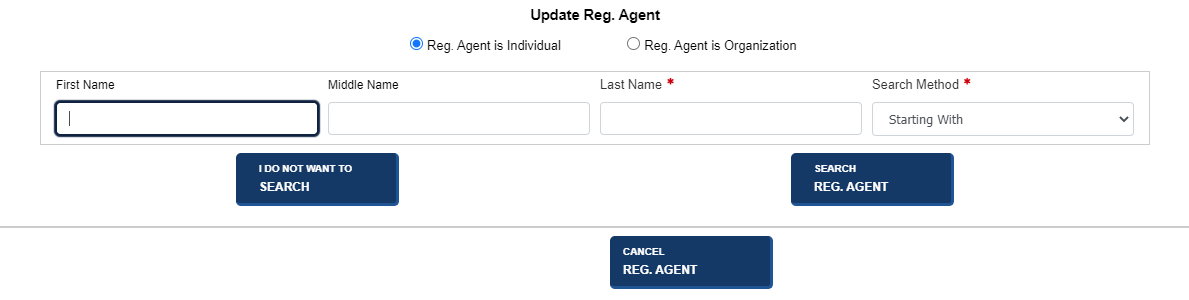
- Perform the following:
- Select the applicable radio button (Reg.
Agent is Individual or Reg.
Agent is Organization).
- Enter the name of the registered agent.
- Select an option from the Starting
With drop-down list.
- Select the Search
Reg. Agent button.
- Search results display. In this example, a search
was performed for an individual registered agent.

Note: If you do not wish to
search for an individual registered agent, select the I
Do Not Want to Search button. The Add
Registered Agent screen displays. Note, however, that if you choose
to add an organization registered agent on that screen, a search is necessary.
How to add a registered
agent:
Select the I Do Not Want to Search button.
The screen refreshes so that you can add a registered agent.
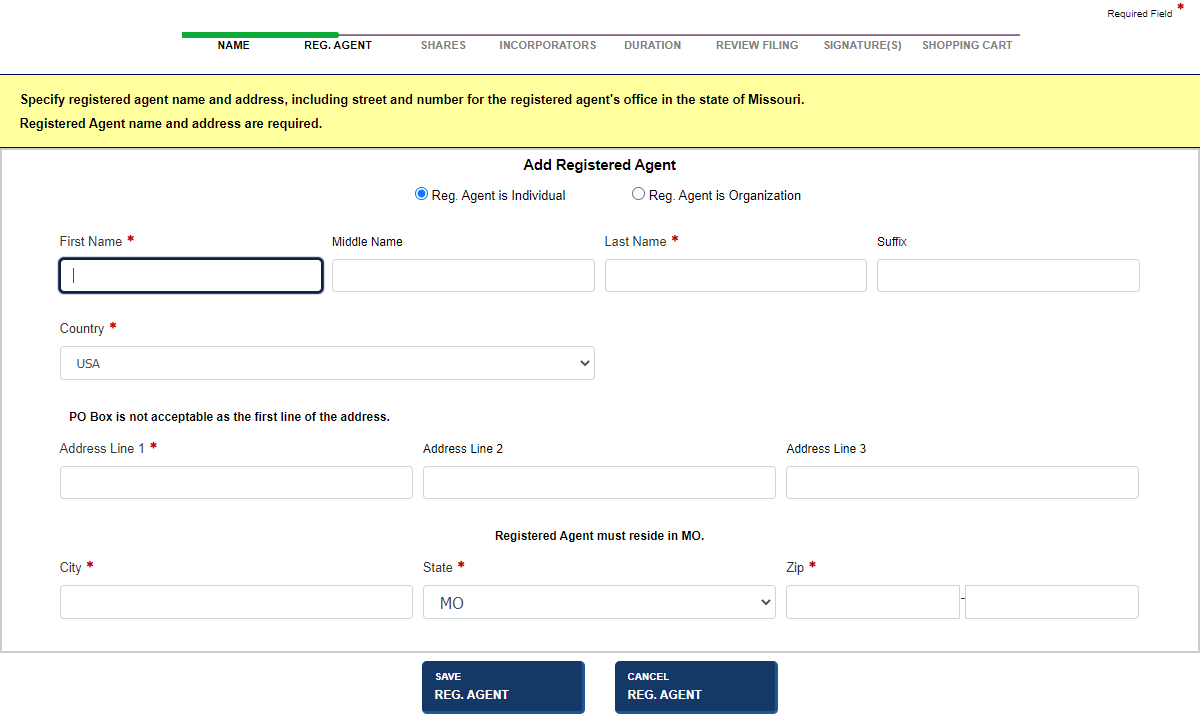
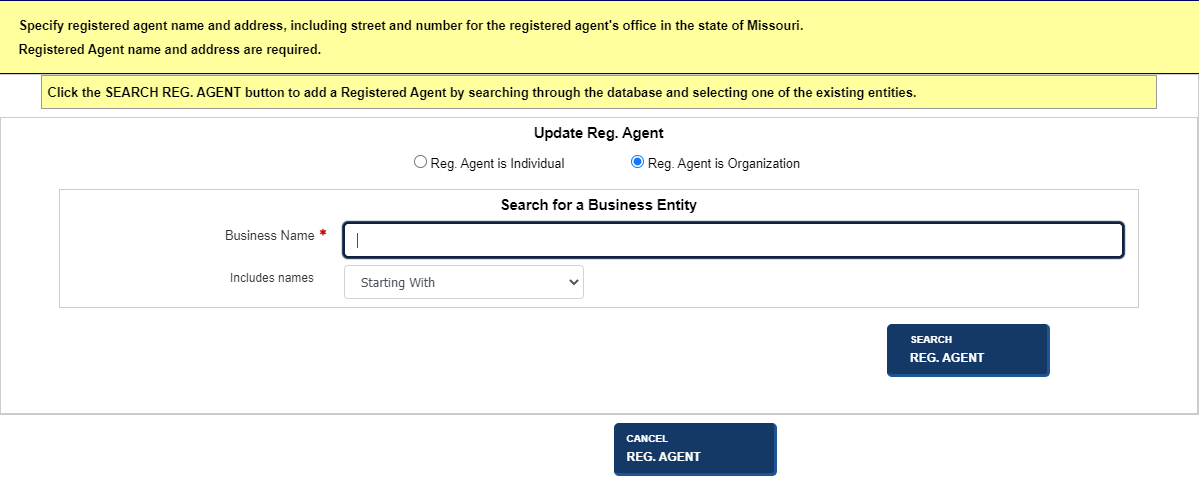
- Select the applicable radio button (Reg.
Agent is Individual or Reg.
Agent is Organization).
- Enter the registered agent's name and address (individual)
or business name (Organization). In this example, an individual registered
agent's information is entered.
- Select the Save
Reg. Agent button. The Registered
Agent table displays the registered agent's name, address,
type and status.
How to update a registered
agent (same filing):
- Select the Update
button. The Update Reg. Agent
screen displays. All buttons on the Registered
Agent table are disabled.
- Modify the registered agent's information, as applicable.
- Select the Save
Reg. Agent button. The Registered
Agent table re-displays with the updated information.
How to delete a registered
agent (same filing):
- Select the Delete
button. A confirmation message displays.
- Select OK
to close the message and delete the registered agent.
How to change a registered
agent address:
Select the Change Reg. Agent/Address link on
the Corporations Division dashboard. The File
an Amendment for an Entity screen displays. Refer to Filing an Amendment, if needed.
Enter the Charter No. and then select the File Amendment button. The Details screen displays.
- The Details
screen displays. Select the applicable Filing
Type and then select File
Online. The General
Info. screen displays for your review.
- Select the Next:
Reg. Agent button to
modify registered agent information.
- Select the Change
Address button to change the registered agent's address.
- Save your changes.
- Select the check boxes, and then select Next:
Review Filing. Refer to Reviewing
Your Filings-BE.
Related Information
Creating a New
Entity
Filing an Amendment
Filing a
Periodic Report
Filing an Amendment
Managing Addresses
Managing Duration
Managing General Information
Managing Names
Managing Payments
Managing Signatures
Managing Stock
Managing
the Shopping Cart
Reviewing Your
Filings-BE
Searching
for a BE
Viewing
Order Summary
Viewing BE Details