Filing a Periodic Report
In
order to remain in compliance, a business entity must file a periodic
report. Periodic reports can be filed on an annual or biennial (every
two years) basis as configured by your jurisdiction. If your business
was formed in an even year, for example, 2010, then you can file a biennial
report in an even year only. If your business was formed in an uneven
year, for example, 2011, then you can file a biennial report in an uneven
year. If preferred, you can return to annual report filing but only when
the next periodic report is due. You cannot file an annual report during
a biennial period.
In
some cases, multiple years of registration reports may be due by certain
BE types. Your jurisdiction may require that the oldest registration report
be filed before any current report will be accepted. For example, the
BE owes reports for 2010, 2011, 2012. If the 2010 report is filed, it
will be accepted, but if the 2011 report is filed prior to the 2010 report,
the 2011 report will be rejected.
Notes:
- If another filing for the same business entity
is in process or is of the same filing type as the current filing,
you will be alerted to try again later. The current filing cannot
be continued but can be restarted when the other filing has been completed
(accepted/rejected).
- Screens, fields and labels that display in images
below are configurable based on your jurisdiction's implementation
and may not reflect your filing type.
- If you need to re-enter information, select the
button labeled Previous to
return to the screen you were on prior to the current screen.
- If your filing requires a two-step review process,
an internal Secretary of State processor must review your filing for
compliance before it can be accepted or rejected. After making payment,
you will be notified via the email address set up during account creation.
To view correspondence for your filing, refer to Order Summary/Correspondence-BE
for information about accessing your filing records.
- Contact your Secretary of State office if you have
questions about this or any procedure in SystemWORKS Help.
How to file a periodic
report:
Navigate
to the Corporations Division
dashboard.
From
the Registration Reports pane,
select File Annual Report,
File Biennial Report, or Print Registration Report. The File Annual/Biennial Report screen
displays.
- Enter the Charter
No. in the text box.
- If you do not know the charter number, select
the Search by Name button
to perform a search (refer to Searching
for a BE for instructions).
- Select the File
Online button to display the Details
screen. Refer to Viewing BE
Details for additional information.
- Select the Report
Type from the drop-down list and then select the File
Reg. Report button. The General
Information screen displays. Refer to Managing
General Information, if needed.
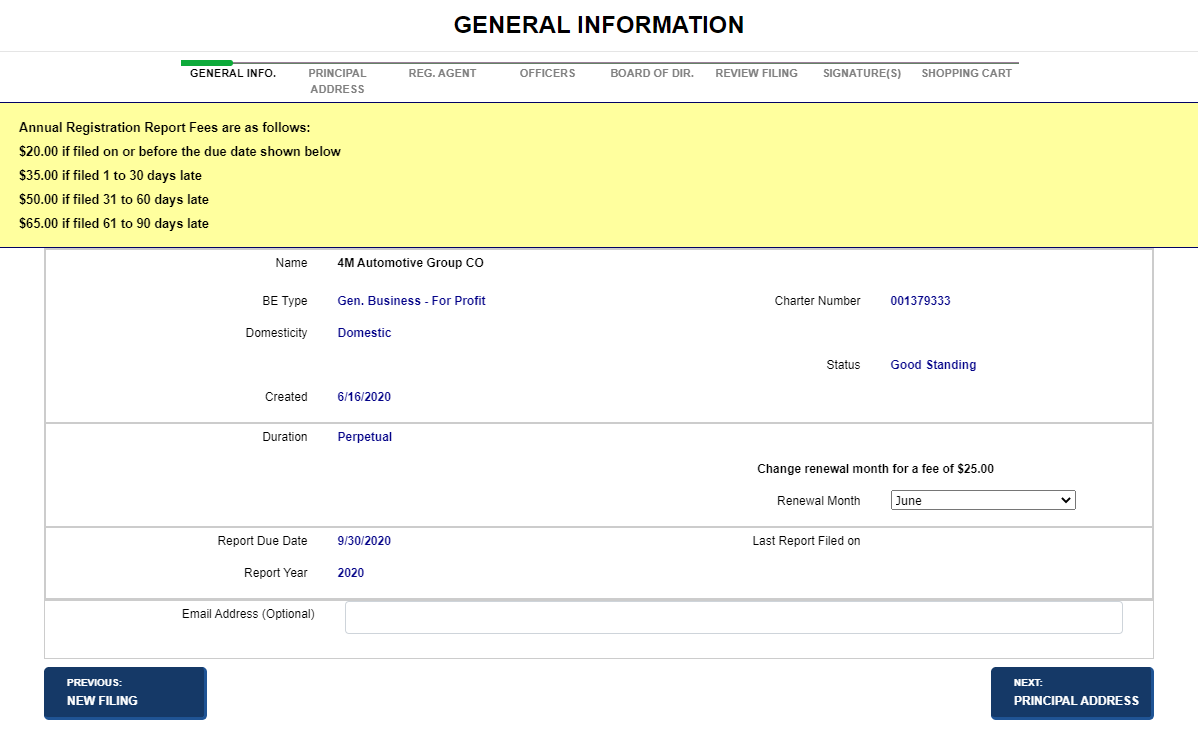
- Review information and update where needed.
- Select the Next:
Principal Address button to display the associated screen.
Refer to Managing
Addresses, if needed.
- Enter address information; note a PO Box address
cannot be on line 1.
- Select the Next:
Reg. Agent button to display the associated screen.
- A registered agent can be an individual or
organization. If you select organization, you will need to perform
a search for the registered agent.
- If a registered agent exists, you can change
the address. Select the Change
Address button. A message advises that you will be making
the current registered agent previous. The Add Registered Agent
form displays.
- Save the registered agent information. The Registered Agent table displays.
If needed, you can update or delete an Active (Pending) registered
agent.
- Refer to Managing
Registered Agents for how registered agent information is
managed.
- Select the Next:
Officers button to display the associated screen. The required
number of officers must be entered (at least one president and one
secretary, etc.).
- An officer is an individual.
- Select a Type
and enter as many officers as needed.
- Save the officers information. The Officers
table displays. If needed, you can update or delete an officer.
- Refer to Managing
Officers for how officer information is managed.
Note:
The screen used to add and modify Officers, Incorporators, Organizers,
Directors, General Partners, etc., contains similar fields and labels.
Your filing type determines the screen name and type of information that
displays; instructions are very similar.
- Select the Next:
Board of Dir. button to display the associated screen (note
the Board of Directors screen is similar to the Officers
screen). The required membership must be entered (at least one director,
etc.).
- Board members can be individuals or organizations.
- Select a Type
and enter as many members as needed.
- Save the members information. The Board
of Directors table displays. If needed, you can update
or delete a member.
- Refer to Managing
Officers for additional information.
Note:
The screen used to add and modify Officers, Incorporators, Organizers,
Directors, and General Partners contains similar fields and labels. Your
filing type determines the screen name and type of information that displays;
instructions are very similar.
- Select the Next:
Review Filing button to review your filing.
- Review the filing for accuracy; edit information
as needed.
- Select the Acknowledge
check box.
- Refer to Reviewing
Filings for detailed information on reviewing and editing
filings.
- Select the Next:
Signatures button to display the associated screen.
- Select one or more names from the list that
displays, or add a signer if needed.
- Select the Acknowledgment
check box. There may be multiple check boxes.
- Refer to Managing
Signatures for additional information.
- Select the Next:
Shopping Cart to display the Shopping
Cart.
- Shopping cart items can be modified and new
items added, if needed.
- Select the Confirmation
check box.
- Select the Next:
Payment button to display the associated screen.
- Select your payment method and enter
payment information.
- Select the Terms
and Conditions check box.
- Refer to Managing
Payments for complete details.
- Select the Next:
Submit Payment button to display the associated screen.
- Payment confirmation displays information about
your order.
- To view documentation, select the View
Documentation button.
- Refer to Order Summary/Correspondence-BE
for additional information.
How to print a blank
annual report:
Enter
the Charter No. in the text
box.
Select
the Print Blank Annual Report
button. The Print Blank Annual Report
modal opens. Information about the business entity is pre-populated
including the years for which an annual report will be printed.
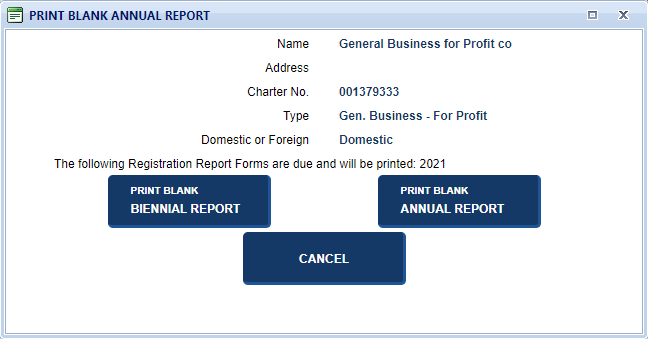
Select the Print
Blank Annual Report button to print the blank form(s).
Related Information
Managing
Addresses
Managing
General Information
Managing
Officers
Managing
Payments
Managing
Registered Agents
Managing
Signatures
Order
Summary/Correspondence-BE
Reviewing Filings
Searching
for a BE
Viewing
BE Details