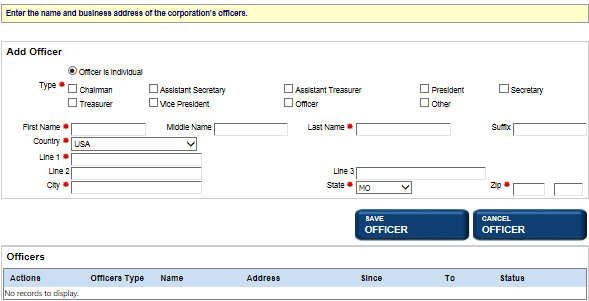
Officers can be added, modified and deleted when processing a filing. Officers must be domestic and the number of officers required is based on filing type.
Notes:
Screens, fields and labels that display are based on your jurisdiction's implementation and may not reflect your filing type. For example, the screen used to add and modify Officers or Incorporators or Organizers or Directors or General Partners, etc., contains similar fields and labels. Your filing type determines the screen name and type of information that displays; instructions are very similar.
How to add officers:
After navigating from the previous screen the Officers screen displays.

Displays Add Officer screen; add officers per instructions in this section.
Displays officer information for editing. See below for details.
Removes officer from the filing. See below for details.
Returns to the Registered Agent screen.
Displays the Board of Directors screen where you can add board members.
How to update an officer (same filing):
Select the Update button in the applicable row of the Officers table.
How to delete an officer (same filing):
Select the Delete button in the applicable row. A confirmation message displays.
Select OK to close the message and delete the officer.
Continue processing as above.
How to make an officer previous/current (officer in active status):
Navigate to the Officers screen; the Officers table displays below.

To make the current officer previous, you can do one of the following:
Related Information
Creating a Domestic Corporation
Creating a Foreign Corporation