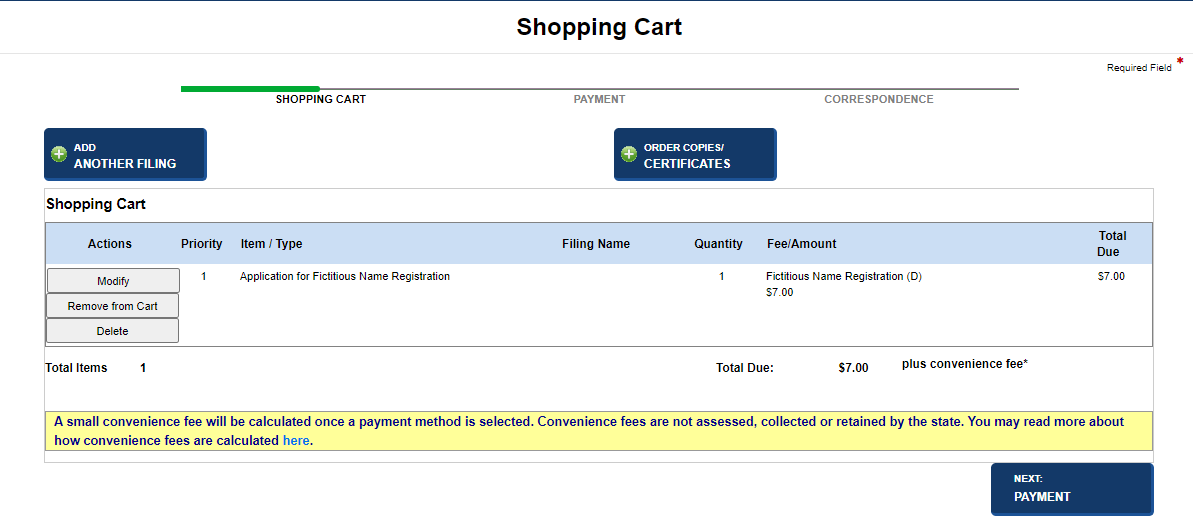
The Shopping Cart displays filings and requests that have not yet been paid for. If the shopping cart is full, items in the shopping cart must be paid for before you can add another item. If you are making a payment on a balance due and the shopping cart already has one or more items in it, you must process the shopping cart or remove the other items before proceeding with the balance due payment. Balance due payments display in both Liens and Business Entity shopping carts until processed.
Fields and labels that display in images below may not reflect your jurisdiction's implementation or the filing activity/filing type you are processing. Contact your jurisdiction's office if you have questions about the procedure outlined here.
Fees are configured by your jurisdiction and are based on filing type, filing category, BE type and domesticity. Some examples of filings that may not have an associated fee are service of process, periodic reports, or rescission packet filings. In those instances, the payment screen is bypassed, and you can navigate directly to Order Summary to view correspondence related to your filing. In some cases, an additional fee may be added to your filing fee as in the case of changing the annual report renewal month, adding number of general partners for consolidations, and filing amendments with amended adoption dates, etc. Contact your jurisdiction if you have any questions about how fees are assessed.
How to use the shopping cart:
After navigating from the previous screen, the Shopping Cart displays.
Adds a new filing/request.
Orders copies and certificates.
Returns to a specific filing/request for editing purposes.
Removes the filing/request from the shopping cart.
Permanently deletes the filing/request.
Displays the Payment Information screen so you can pay for your filings. Refer to Managing Payments for details.
How to add another filing:
Select the Add Another Filing button. The Create a New Corporation screen displays.
Select the applicable tab: Create a New Corporation, File an Amendment or File a Periodic Report.
Once the filing has been saved, the Shopping Cart displays.
Continue processing as above.
How to order copies/certificates:
Select the Order Copies/Certificates button. The Search for a Business Entity screen displays.
Perform the search per Searching for a BE.
Once your order has been saved, the Shopping Cart displays.
Continue processing as above.
Refer to Ordering Copies/Certificates for comprehensive instructions.
How to modify a filing:
Select the Modify button in the row containing the item you wish to edit. A confirmation message displays.
Select OK to remove the item from the Shopping Cart and return to the Filing Review screen.
Make changes to the item, and then select Next: Shopping Cart.
Continue processing as above.
How to remove a filing:
Select the Remove from Cart button. A confirmation message displays.
Select OK to close the message. The item is added to Filing History with a status of In Progress.
Continue processing as above.
How to delete a filing:
Select the Delete button. A confirmation message displays.
Select OK to close the message and permanently delete the item.
Continue processing as above.
How to resequence a filing:
Select the Up icon to move the item up one level at a time. The row numbers are resequenced to reflect your changes.
Continue processing as above.
Related Information