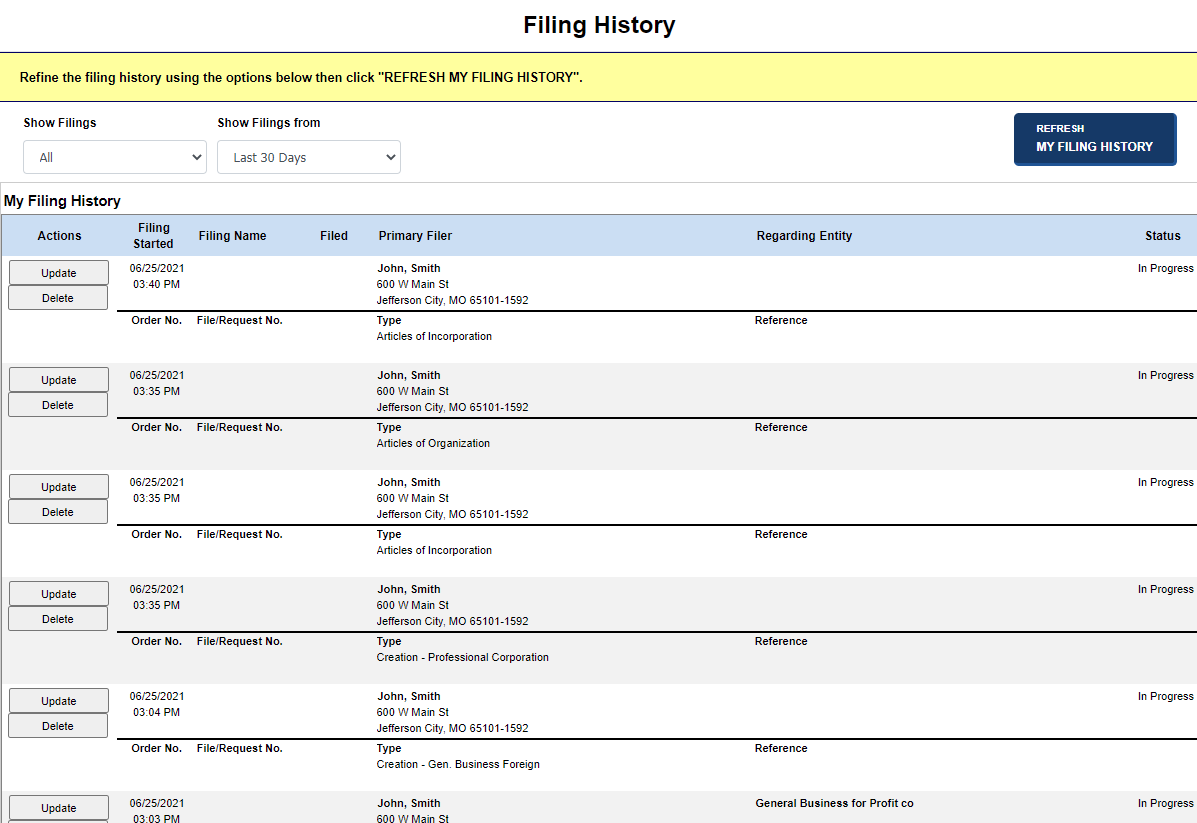
The Filing History screen allows you to view your internal and external filings and requests and the associated correspondence. Filters can be used to display filings in a variety of statuses. A filing with the status of Accepted cannot be modified or deleted as the filing is on record with the Secretary of State. However, if the status is In Progress or In Cart, it can be deleted. If your jurisdiction uses a two-step process for filings, the status of your filing changes to Under Review after payment has been accepted. The second step requires the jurisdiction to review your filings and when completed, the status changes to Accepted (Filed/Fulfilled) or Rejected.
You can access the Filing History screen by selecting the applicable link, as configured by your jurisdiction. Links may display in the QuickLinks pane, Dashboard, and File/Search and Home tabs. If you choose the Filing History link, the Show Filings drop-down list defaults to All; from the In Progress Filings link, the Show Filings drop-down list defaults to In Progress. The following table lists the Show Filings filter criteria used to display your filing history.
FILTER |
Definition |
In Progress |
Displays filings/requests that are in process but not yet added to the shopping cart. |
In Cart |
Displays filings/requests that have been added to the shopping cart. |
Accepted |
Displays filings/requests that have been submitted, paid for, and accepted by the jurisdiction (filed or fulfilled). |
Rejected |
Displays filings/requests that were rejected by the jurisdiction. |
Under Review |
Displays filings/requests that have been submitted, paid for, and are in the process of examination by the jurisdiction (if configured for a two-step process). |
All |
Displays all filings/requests. |
How to access your filing history:
Select Filing History. The Filing History screen displays. In this example, four filings are In Progress and two have been Accepted.
How to change the filter settings:
Select a status from the Show Filings drop-down list.
Select a date value from the Show Filings from drop-down list.
Select the Refresh My Filing History button to display filings according to the filter criteria.
How to update a filing:
Select the Update button. You will be directed to last screen you were on prior to completing the filing.
Modify information, as applicable.
Note: The navigation buttons displayed are configured by your jurisdiction based on filing type.
How to update a search/copy request:
Select the Update button. The screen you were on before completing the request displays.
If needed, search for and select the business entity (refer to Searching for a BE for details).
Enter certificate and copy information, if needed.
Continue to the Shopping Cart if you are ready to review and pay for your filing or select In Progress Filings to return to that screen.
How to delete a filing:
Select the Delete button. A confirmation message displays.
Select OK to close the message and permanently delete the filing.
How to view documents:
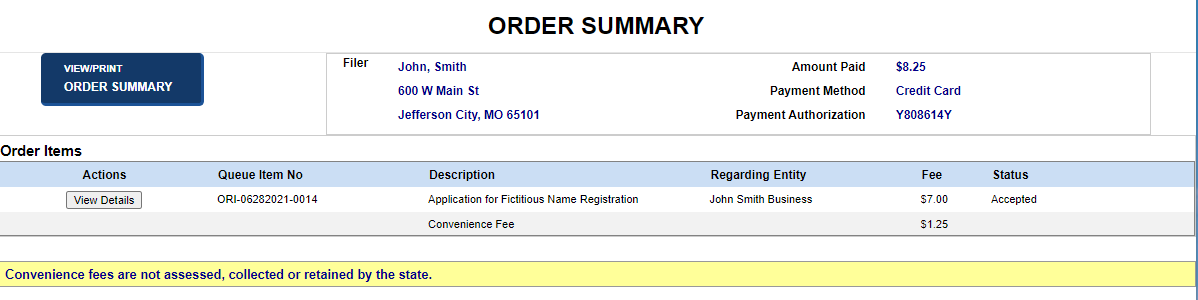
Select the View Docs button. The Order Summary screen displays. Refer to Order Summary/Correspondence-BE for how to view and print correspondence.
Related Information