Viewing Order Summary/Correspondence-BE
There are several ways you can view documentation related to your filing:
- If your filing has a zero dollar fee ($0.00), the
Shopping Cart does not direct
you to the payments screen. Instead, the View
Documents button directs you to the Order
Summary screen where you can view filing documentation. Refer
to Managing
Shopping Cart-BE for details.
- After submitting your payment, select the View Documentation button from the
Payment Information screen.
The Order Summary screen opens.
Depending upon the status of your filing, you can view filing documents
and the order summary as well as correspondence related to your filing.
Refer to Managing
Payments for additional information.
- If your jurisdiction has implemented two-step processing,
a processor must review your filing after you submit your payment.
You will be notified via the email address you entered during account
creation. Included in that email is a link to view the Order
Summary and filing documents.
- Once the filing is accepted or rejected, another
email from the jurisdiction will be sent to you. Correspondence is
attached to that email in PDF format. To view the attachments, you
must have the Adobe® Reader® software installed on your computer;
select the Get Adobe Reader
button or this link
to download a free version from Adobe.
- If the two-step process is not implemented, you
can view correspondence after payment is made (see #1 above) or by
opening the attachment(s) to your email when your filing has been
accepted or rejected.
- From the Filing
History screen, select the View
Docs button to display Order
Summary. The View Docs
button only displays for filings that have been committed (accepted
or rejected).
How
to view order summary/correspondence:
Select
the View Documentation button.
The Order Summary screen displays.
You can also access Order Summary
via the Filing History by
selecting the View Docs button.
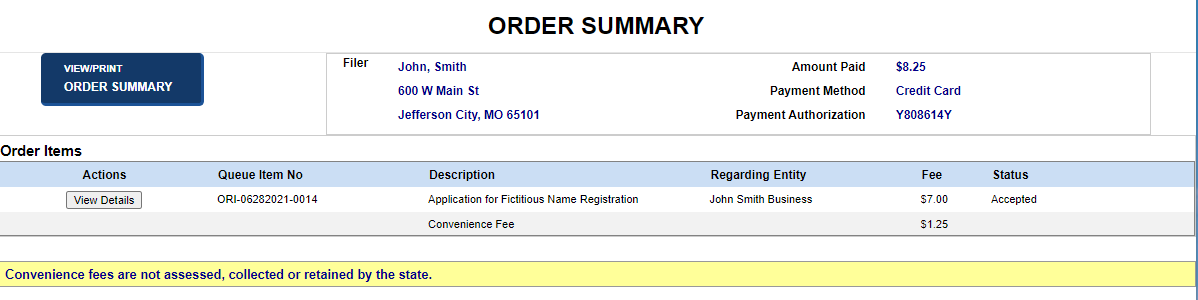
- Select the View/Print
Order Summary button to open the order summary in a separate
window.
- To print the order summary, use your browser's
print settings.
- Close the window to return to Order
Summary.
- Select the View
Details button to open Filing
Details.
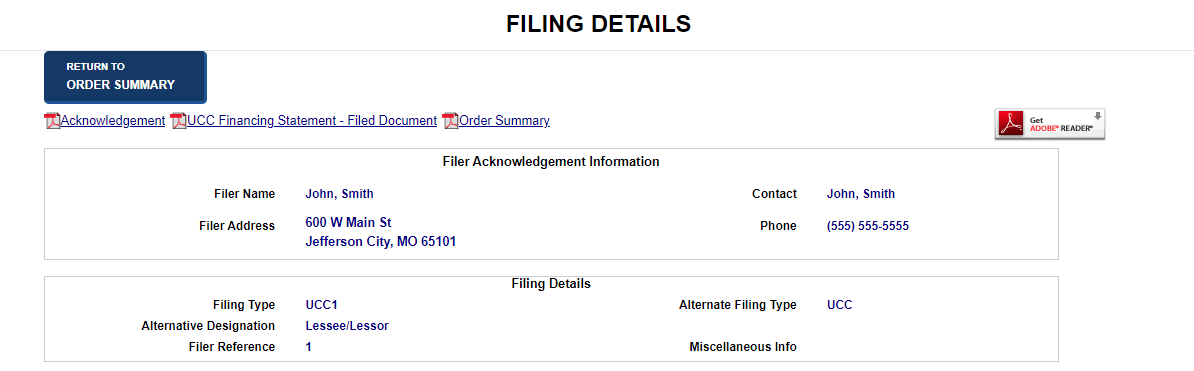
- Select a link to display a PDF of the specified
correspondence and filing documents.
- Select the Return
to Order Summary button to return to Order
Summary.
Related Information
Managing
Payments
Managing
Shopping Cart-BE