Ordering Copies/Certificates
Business entity filing copies and certificates are available for order.
In some cases, a document image may not be available, particularly if
the selected filing was dated prior to the implementation of document
imaging technology. When the image is not available, your jurisdiction
will scan the document or service the copy request in another manner.
Your jurisdiction will notify you when the requested image is available.
Select from the following options to begin your order:
- Perform a Business
Entity (BE) search (Search
for a Business Entity).
- Select Order Good
Standing or Order Certified
Copies.
- Select the Order
Copies/Certificates button in the Shopping
Cart.
How to order copies/certificates:
Navigate to the
Corporations Division screen,
and select an item from the Certificates
& Copies pane (Order Good Standing or Order Certified Copies).
The Search for a Business Entity
screen displays.
Perform a search
per Search
for a Business Entity.
- Select the BE from search results. The Details
screen opens, displaying information about the selected BE.
- Select the Order
Copies/Certificates button to initiate your order. The business
name appears at the top of the next screen.
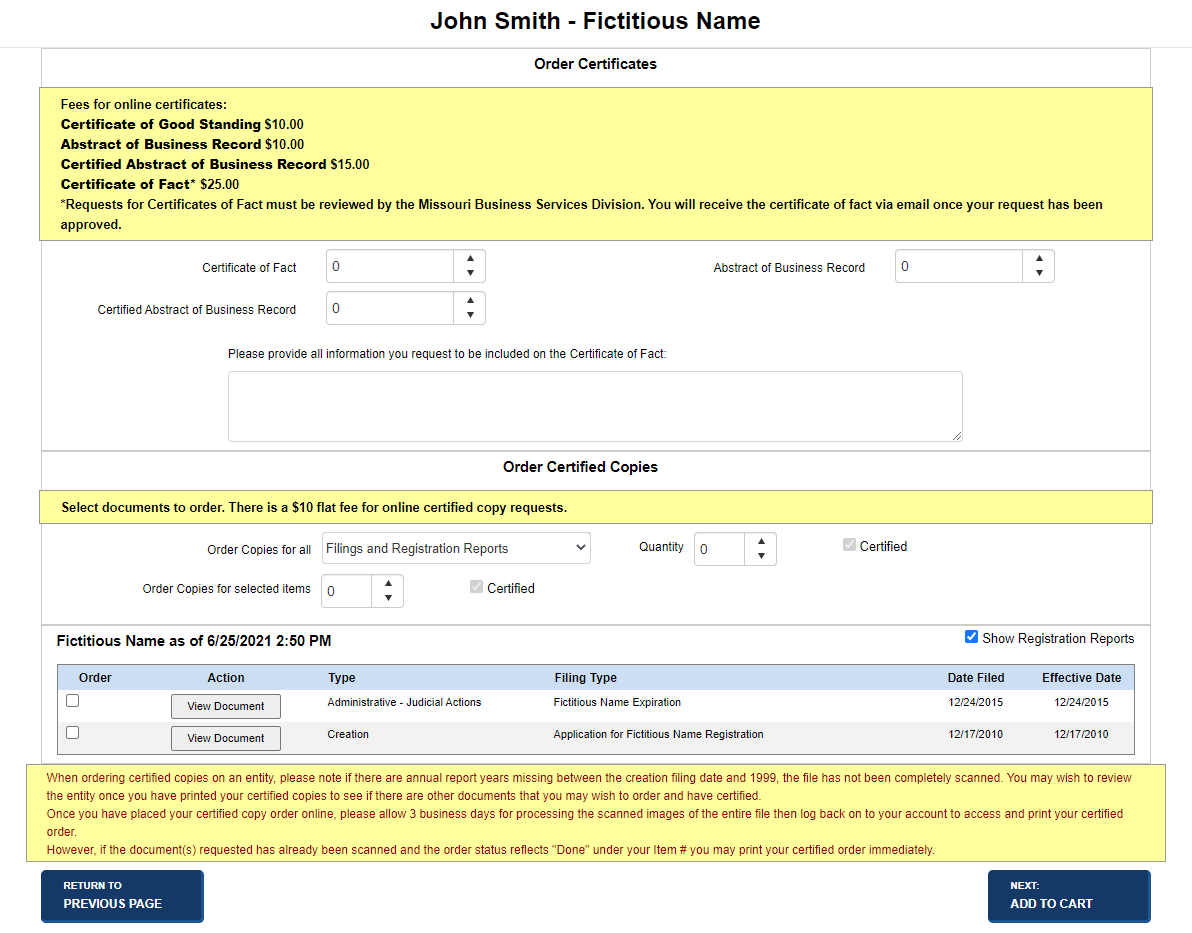
- To Order
Certificates, use
the up/down arrows or enter the quantity in the applicable field.
OR
- To Order Certified
Copies:
- In the Order
Copies for all row, select Filings,
all Filings and Periodic Reports,
or all Periodic Reports
in the drop-down list; use the up/down arrows or enter
the quantity in the applicable field.
- In the Order
Copies for selected items row (as displayed
in the table), use the up/down arrow or enter the quantity.
- To view the associated filing document(s),
select the View Document
button.
- To display the periodic report(s) in the
table, select the Show Periodic
Reports check box.
- The Certified
check box is already selected and cannot be edited. All online
requests for copies are certified.
- Select one of the following options:
Discards entered information and returns
to the previous screen.
Saves entered information and adds your items
to the Shopping Cart. Refer to
Managing
Shopping Cart-BE for additional information. Once payment has been
made, there are several options available for viewing copies and certificates.
How to view copies
and certificates:
- Select the View
Documentation button from the Payment
Information screen. The Order
Summary screen opens. Select View
Details, and depending upon the status of your filing, you
can view correspondence
and the order summary related to your order. If any part of your order
is unavailable and documents must be scanned, a message to that effect
displays. When the images are available, you will be notified by your
jurisdiction.
- If your jurisdiction has implemented two-step processing,
a processor must review your filing after you submit your payment.
You will be notified via the email address you entered during account
creation. Included in that email is a link to view the Order
Summary and filing documents.
- Once the filing is accepted or rejected, another
email from the jurisdiction will be sent to you. Correspondence is
attached to that email in PDF format. To view the attachments, you
must have the Adobe® Reader® software installed on your computer;
select the Get Adobe Reader
button or this link
to download a free version from Adobe.
- If the two-step process is not implemented, you
can view correspondence after payment is made (see #1 above) or by
opening the attachment(s) to your email when your filing has been
accepted or rejected.
Related Information
Managing Payments
Managing
Shopping Cart-BE
Search
for a Business Entity
Verifying Certificates
Viewing
Correspondence-BE