Creating an LLC
Any person, whether or not a member or manager, may act as an organizer
and form a limited liability company (LLC) by signing and filing articles
of organization with the Secretary of State. Domestic LLCs are organized
under the laws of your state; foreign LLCs are formed under the laws of
any jurisdiction other than your state. Refer to Creating
a Foreign Corporation for instructions on filing a foreign LLC.
Notes:
- If another filing for the same business entity
is in process or is of the same filing type as the current filing,
you will be alerted to try again later. The current filing cannot
be continued but can be restarted when the other filing has been completed
(accepted/rejected).
- Screens, fields and labels that display in images
below are configurable based on your jurisdiction's implementation
and may not reflect your filing type.
- If you need to re-enter information, select the
button labeled Previous to
return to the screen you were on prior to the current screen.
- If your filing requires a two-step review process,
an internal Secretary of State processor must review your filing for
compliance before it can be accepted or rejected. After making payment,
you will be notified via the email address set up during account creation.
To view correspondence for your filing, refer to Order
Summary/Correspondence-BE for information about accessing
your filing records.
- Contact your jurisdiction's office if you have
questions about this or any of the procedures outlined in SystemWORKS
Help.
How to file an LLC:
Navigate to the Corporations
Division dashboard.
In the LLC
Filings pane, select Create
LLC to display the associated screen. The Create
a New Entity tab displays first by default.
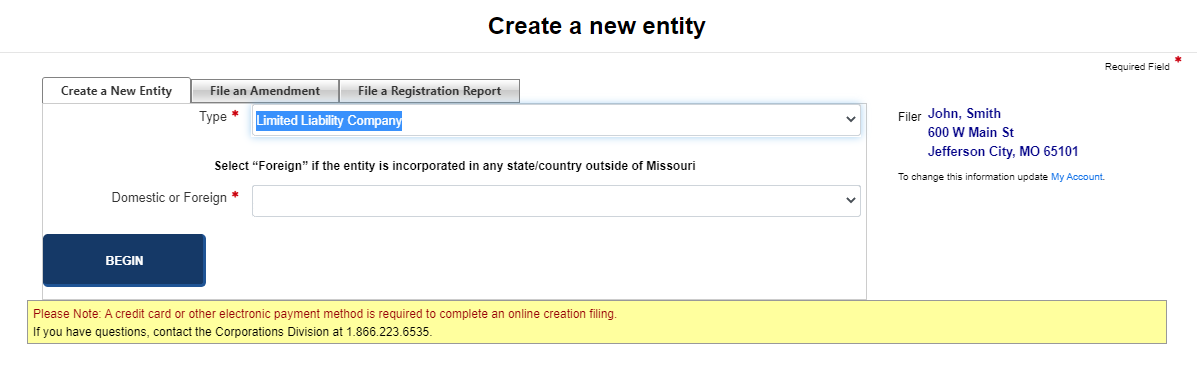
Modify filer information, if needed.
If you are an Account
Representative, the filing screen displays with a link
that allows you to process the filing in that capacity. Select
the here
link to change filer information; select the link again to file
as Account Owner.
If you are an Account
Owner, the link does not display.
Refer to Managing
Account Reps/Account Owners for more information.
- Select a Type
(if not already pre-selected) and Domesticity
from the drop-down lists.
- Select the Begin
button to save the information and display the next screen. In this
example, the Name screen displays.
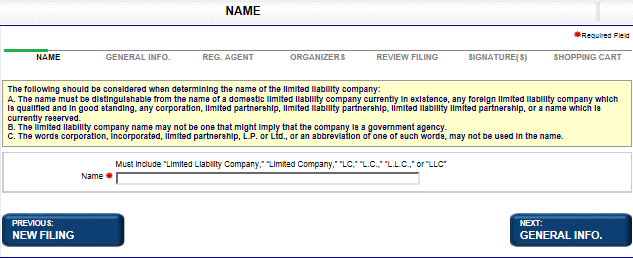
- Enter a name for the LLC, keeping in mind the information
requirements for the name.
- Select the Next:
General Info. button.
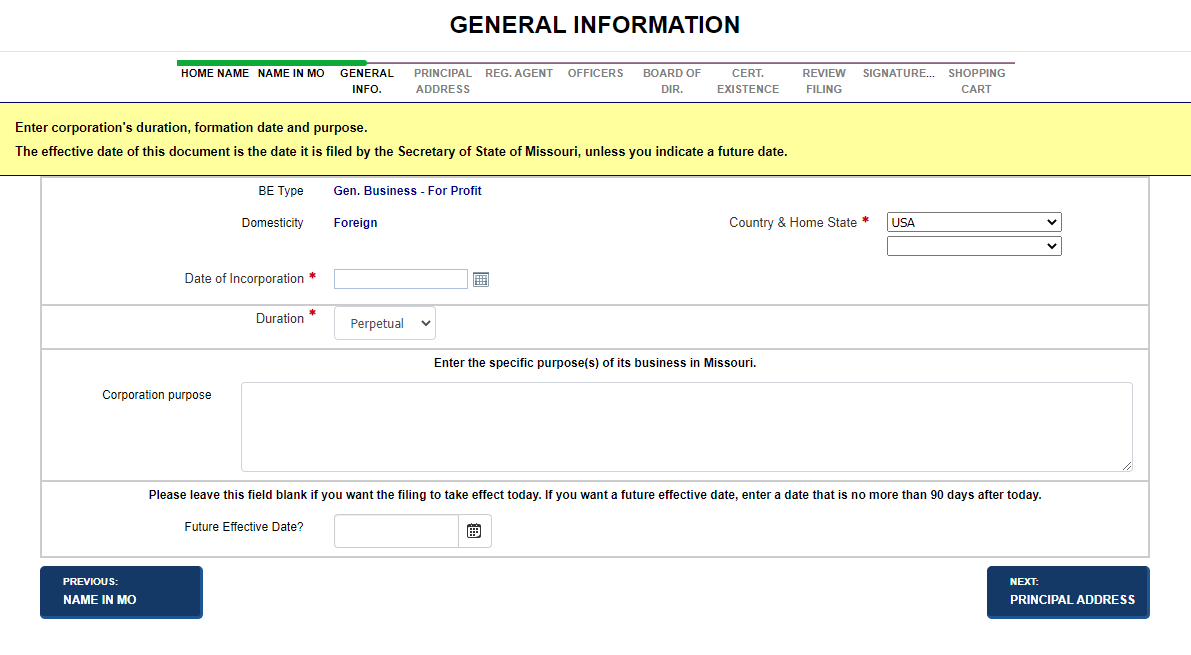
- Enter information for the LLC:
- Duration
- Managed by
- Purpose
- Effective Date
- Check Series LLC to form a Series LLC only
- Select the Next:
Reg. Agent button to display the associated screen.
- A registered agent can be an individual or
organization. You will need to perform a search for the registered
agent. Refer to Searching for
a BE for instructions.
- Select the registered agent from search results.
- Refer to Managing
Registered Agents for how registered agent information is
managed.
- Select the Next:
Organizers button to display the associated screen. At least
one organizer is required, with a maximum of five organizers listed.
To list six or more organizers, you must submit a paper filing. Click here for
the form.
- An officer can be an individual.
- Select a Type
and enter as many organizers as needed.
- Save the organizer information. The Organizers
table displays. If needed, you can update or delete an
organizer.
- Refer to Managing
Officers for how organizer information is managed.
Note:
The screen used to add and modify Officers, Incorporators, Organizers,
Directors, or General Partners, etc., contains similar fields and labels.
Your filing type determines the screen name and type of information that
displays; instructions are very similar.
Select the Next:
Review Filing button to display the associated screen.
- Review the filing for accuracy; edit information
as needed.
- Select the Acknowledgment
check box.
- Refer to Reviewing
Your Filings for detailed information on reviewing and editing
filings.
- Select the Next:
Signatures button to display the associated screen.
- Select one or more names from the list that
displays.
- Select the Acknowledgment
check box. There may be multiple check boxes.
- Refer to Managing
Signatures for additional information.
- Select the Next:
Shopping Cart button to display the Shopping
Cart.
- Shopping cart items can be modified and new
items added, if needed.
- Select the Confirmation
check box.
- Select the Next:
Payment button to display the associated screen.
- Select your payment method and enter
payment information.
- Select the Terms
and Conditions check box.
- Refer to Managing
Payments for complete details.
- Select the Next:
Submit Payment button to display the associated screen.
- Payment confirmation displays information about
your order.
- To view documentation, select the View
Documentation button.
- Refer to Viewing
Correspondence-BE for additional information.
Related Information
Creating
a Domestic Corporation
Creating
a Foreign Corporation
Managing
Account Reps/Account Owners
Managing
Duration
Managing
Names
Managing
Payments
Managing
Registered Agents
Managing
Shopping Cart-BE
Managing
Signatures
Managing
Stock
Reviewing
Your Filings
Searching
for a BE
Viewing
Correspondence-BE