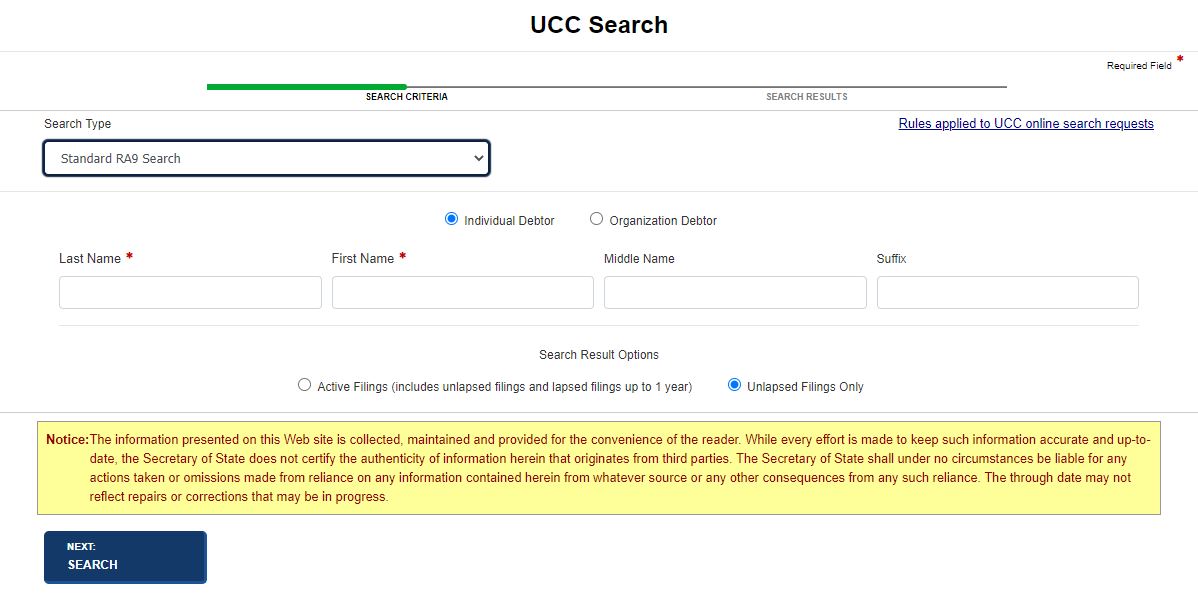
Searches can be standard or non-standard, which also allow for searches by file number. Searches can be free, paid for by subscription, or on a pay-as-you go basis. If you have a subscription or searches are free, the Payment Information screen is bypassed. If you do not have a subscription, you will need to pay for your search before viewing search results. Select the Rules applied to UCC online search requests link if you have questions about online search request rules. To view search documents, you must have the Adobe® Reader® software installed on your computer. Select the Get Adobe Reader button or this link to download a free version from Adobe.
How to perform a standard lien search:
Select the File/Search tab and then select the New Liens Search link from the QuickLinks or New Filings/Searches panes. The UCC Search screen displays.
Select either Individual Debtor or Organization Debtor and then enter the debtor's name. Text fields refresh to reflect your selection.
Select one of the Search buttons.
If you choose Active Filings, only those filings that are unlapsed or have been lapsed for up to one (1) year will display.
If you choose Unlapsed Filings Only, only those filings that have not lapsed are displayed.
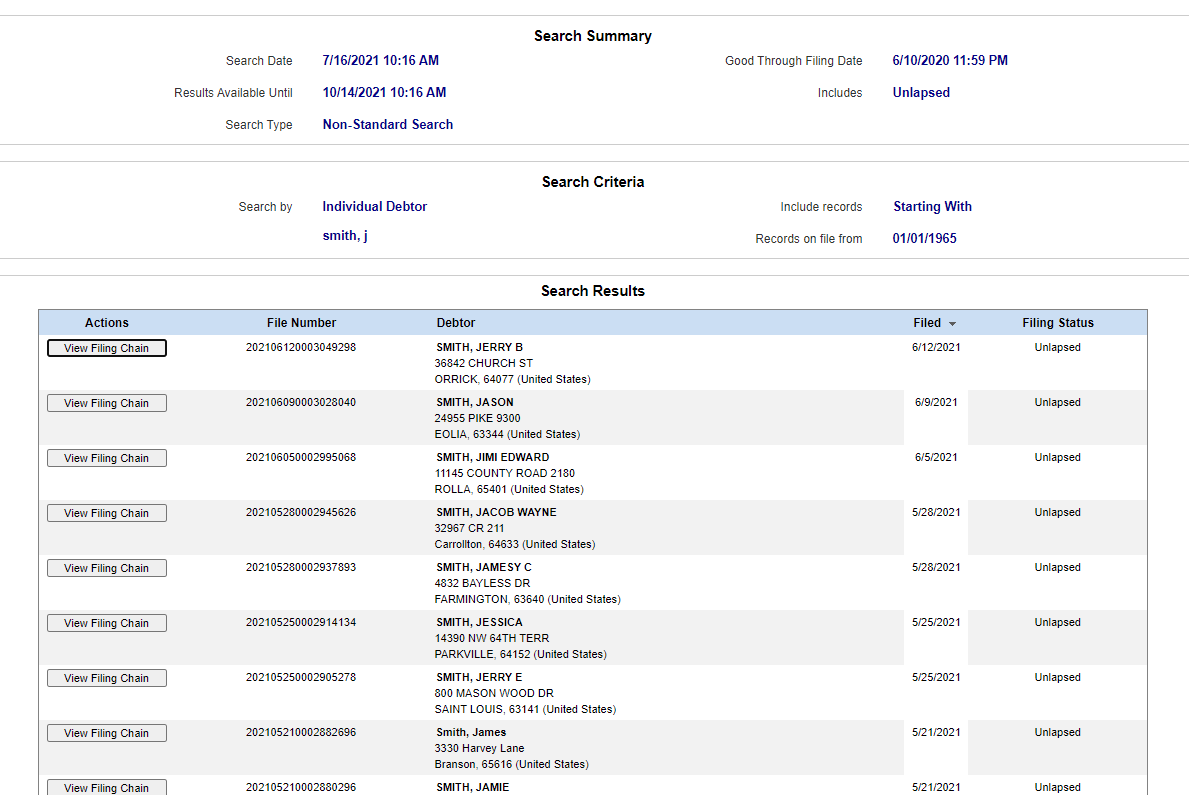
Select the Next: Search button to display search results. You have the opportunity to order a search report and copies, view/print images, review your search criteria, and view the filing chain. You can also perform another search.
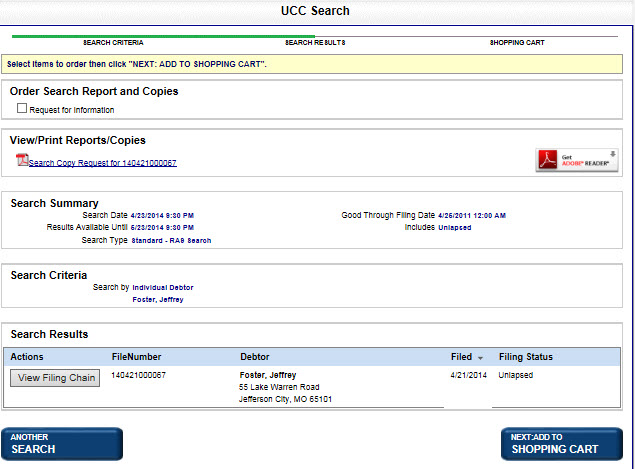
To order a search report:
Select the Request for Information check box and then select the Next: Add to Shopping Cart button to view your shopping cart items. Refer to Managing Shopping Cart-Liens and Managing Payments for details on paying for your search report.
To view an image of your request:
Select the Search Copy Request link for your item. The image displays in a separate window.
How to perform a non-standard lien search - by file number:
Select Non-Standard Search and File Number from the respective drop-down lists.
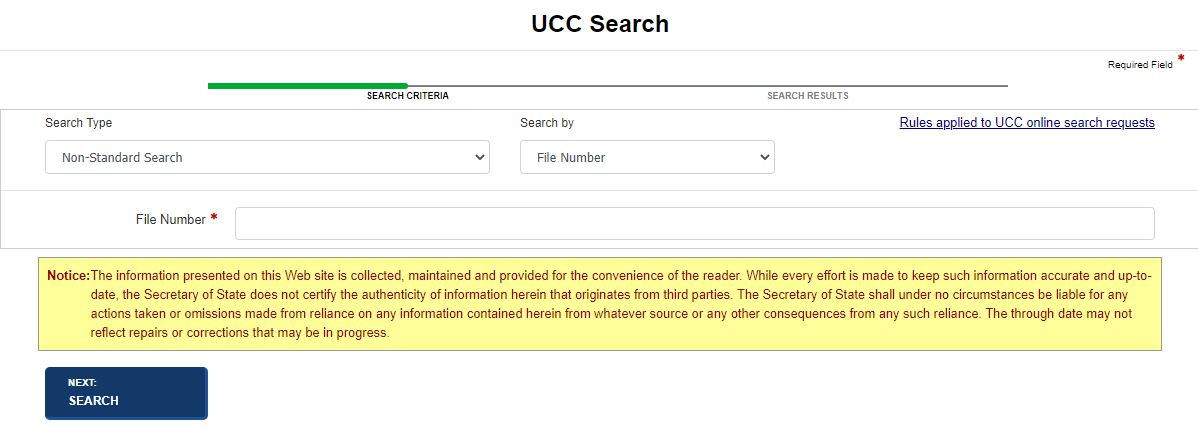
Enter the File Number and select the Next: Search button. Search results display. You have the opportunity to order a search report and copies, view/print reports and copies, review a search summary, and view the filing chain.
Continue as in performing a standard lien search.
How to perform a non-standard lien search - by debtor name:
Select Non-Standard Search and Debtor from the respective drop-down lists.
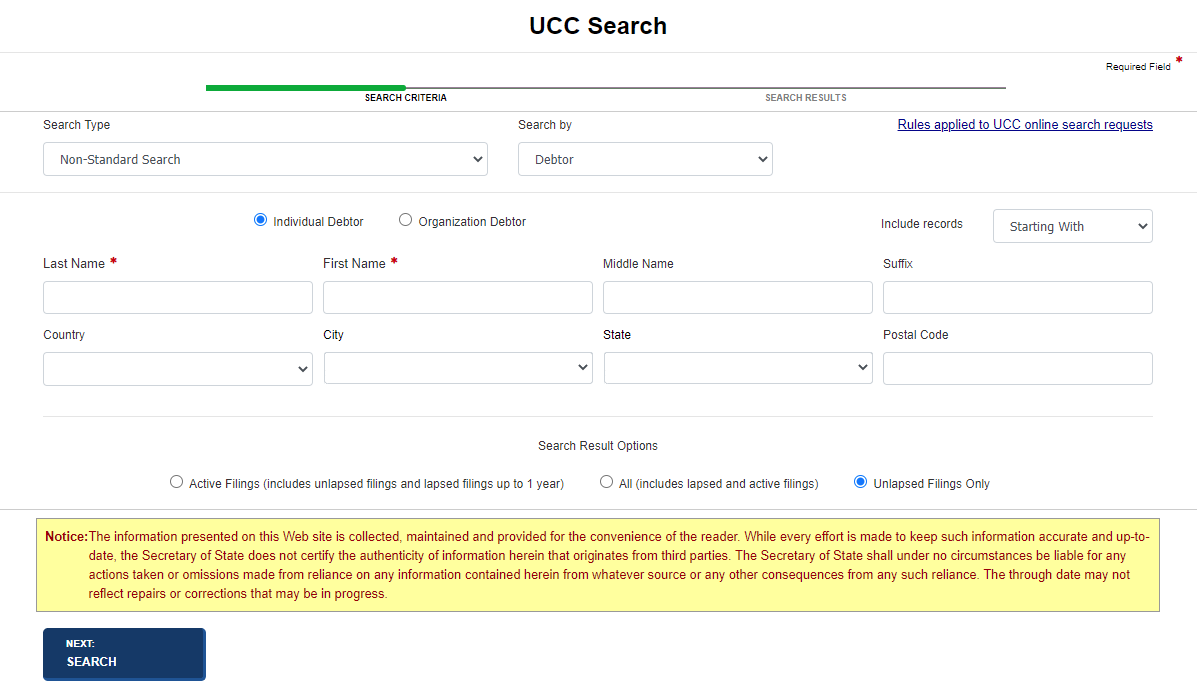
If you choose Active Filings, only those filings that are unlapsed or have been lapsed for up to one (1) year will display.
If you choose All, only those filings that are lapsed and active will display.
If you choose Unlapsed Filings Only, only those filings that have not lapsed are displayed.
Related Information
Creating a Subscription Account