Subscription accounts can be created in the application. This allows you to perform certain activities, such as lien data downloads or certified lien searches, without having to pay for them individually. The commencement date is the latter of the date the payment is processed or the expiration date of an existing subscription of the same type. Notification of subscription purchases are sent to the email address on file for this account.
How to create a subscription:
Select the Subscriptions link. The Manage Subscriptions screen displays. The My Subscriptions table contains information about your subscription, if applicable.
Select the Add New Subscription button. The Add Subscription screen displays.
Select a Subscription Type from the drop-down list. The Fee Amount displays after you select the subscription type. In this example, a Lien Searches subscription type is selected.
The Fee Amount displays below the subscription type.
Select one of the following options:
Add to Cart
The Shopping Cart screen opens displaying the subscription type along with any other filings/requests entered by you.
Cancel
Displays a confirmation message. Select OK to abandon the creation of a new subscription and return to the Add Subscription screen.
If you selected Add to Cart, the Shopping Cart screen displays.
Note: If necessary, you can delete the subscription by selecting the Delete button in the Shopping Cart section.
If configured, select the Disclaimer check box.
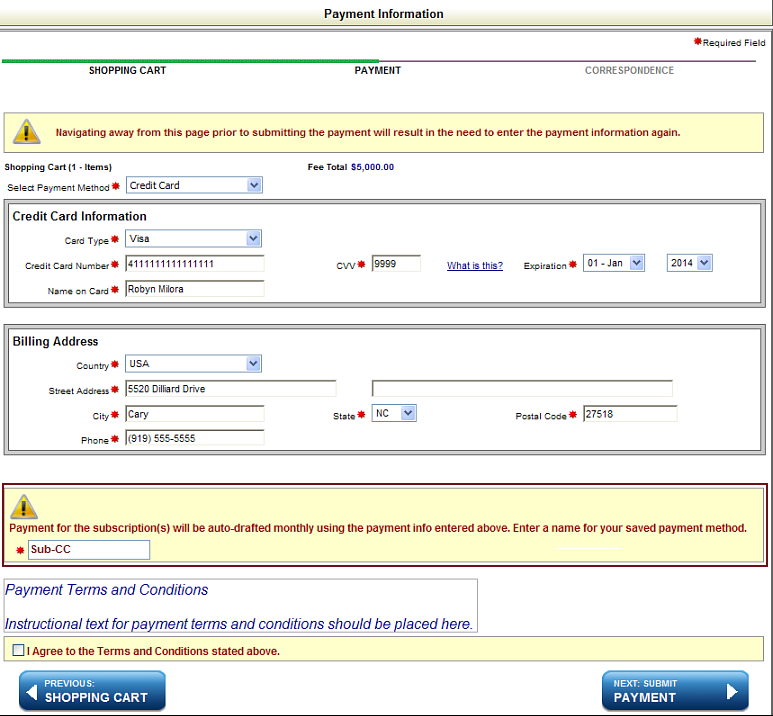
Select Next: Payment to display the Payment Information screen. In this example, payment and billing information is already entered.
Enter a Name for the saved payment method so that this payment method can be used for future payments.
If configured, select the Terms and Conditions check box.
Select one of the following options:
Previous: Shopping Cart
Returns you to the Shopping Cart screen where you can add a filing or search request or delete the current item.
Warning: Navigating away from this page prior to submitting the payment will result in the need to enter the payment information again.
Next: Submit Payment
Submits your payment and displays a payment confirmation message. Correspondence is generated and can be viewed in Order Summary.
Refer to
Related Information