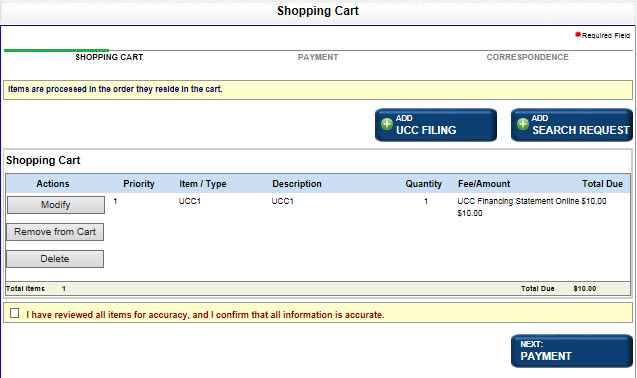
The Shopping Cart displays filings and requests that have not yet been paid for. If the Shopping Cart is full, a message displays indicating that items in the shopping cart must be paid for before you can add another item. If you are making a payment on a balance due and the shopping cart already has one or more items in it, you must process the shopping cart or remove the other items before proceeding with the balance due payment. When making a balance due payment, the payment displays in both the Liens shopping cart and the Business Entity shopping cart until processed.
If you are filing as an account representative and the shopping cart contains items that were added when filing as the account master, your filing will be added to the shopping cart as though you were the account master. Once an item has been added to the shopping cart, you cannot change the filer identification to account master.
How to use the shopping cart:
Navigate to the Shopping Cart. The shopping cart displays filings and requests that have not yet been paid for.
If changes are required, select one of the following buttons:
Adds a new filing.
Adds a search request.
Returns to a specific filing/request for editing purposes.
Removes the filing/request from the shopping cart.
Permanently deletes the filing/request.
If changes are not required, select the Disclaimer check box and then select Next: Payment. The Payment Information screen displays so you can pay for your filings. Refer to Managing Payments for details. If a fee is not associated with your filing, the View Documentation button displays instead of the Payment button.
How to add another filing:
Select the Add UCC Filing button. The New UCC Filing screen displays. Refer to Selecting a Filing Type.
Add and save filing information. The Shopping Cart displays.
Continue processing as above.
How to add a search request:
Select the Add Search Request button. The UCC Search screen displays. Refer to Performing a Lien Search.
When the Shopping Cart displays, continue processing as above.
How to modify a filing:
Select the Modify button in the row containing the item you wish to edit. A confirmation message displays.
Select OK to remove the item from the Shopping Cart and return to the Filing Review screen.
Make changes to the item and then select Next: Shopping Cart to return to the Shopping Cart.
Continue processing as above.
How to remove a filing:
Select the Remove from Cart button. A confirmation message displays.
Select OK to close the message. The item is added to the Filing History table with a status of In Progress. Refer to Viewing Liens Filing History.
Continue processing as above.
How to delete a filing:
Select the Delete Filing button. A confirmation message displays.
Select OK to close the message and permanently delete the item.
Continue processing as above.
How to resequence a filing:
Select the Up icon to move the item up one level at a time. The row numbers are resequenced to reflect your changes.
Continue processing as above.
Related Information