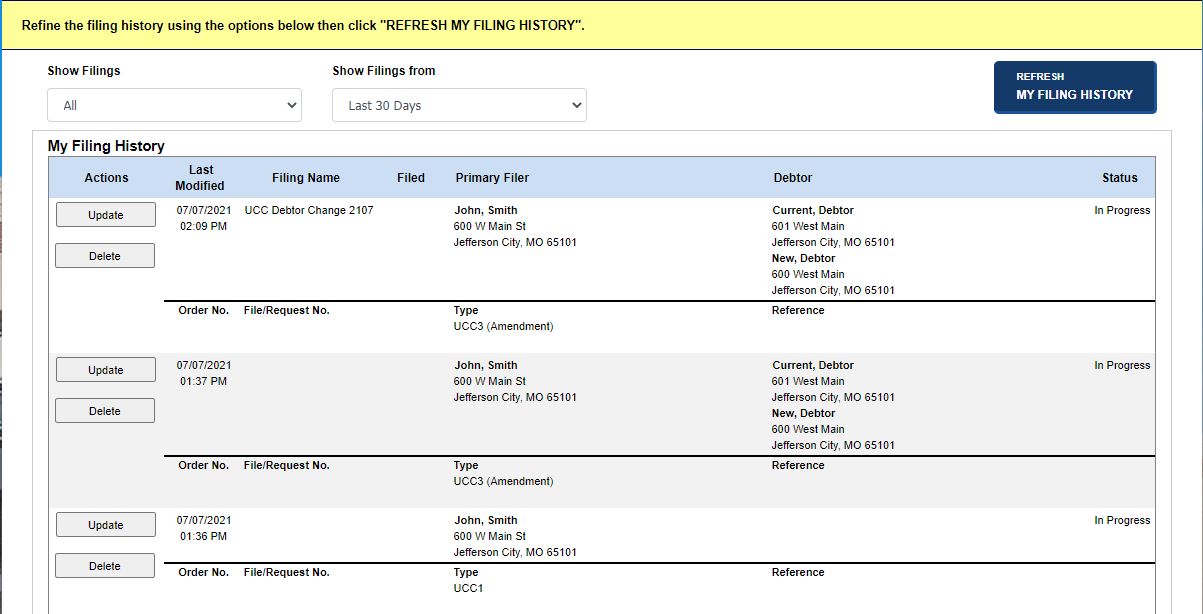
The Filing History screen allows you to view your filings and requests and any associated correspondence. When you log in as an account master or as an account representative, the Filing History screen displays a Filed for drop-down list so you can view the filing history associated with both roles. You can also view in progress filings by selecting the In Progress Filings button on the File/Search screen or by changing the Show Filings filter. The following table lists the Show Filings filter criteria used to display your filing history.
FILTER |
Definition |
All |
Displays all filings. |
Filed |
Displays only those filings that have been submitted and paid for; filing cannot be deleted. |
In Cart |
Displays filings that have not yet been paid for; filing can be deleted. |
In Progress |
Displays filings that are in process and not yet paid for; filing can be deleted. |
How to access your filing history:
From the Home tab or the File/Search tab, select Filing History.
The Filing History screen opens, displaying items that have been accepted as well as those that are in progress.
How to change the filter settings:
Select a status from the Show Filings drop-down list.
Select a date value from the Show Filings from drop-down list.
If you are logged in as an account representative, select an option from the Filed for drop-down list which contains the names of account masters for whom you have filed filings/requests.
Select the Refresh My Filing History button to display filings according to the filter criteria.
How to update a filing:
Select the Update button. Depending upon where you are in the filing process, you will be directed to either the New UCC Filing screen or the Shopping Cart (assuming you selected In Cart from the Show Filings drop-down list)..
If you are directed to the New UCC Filing screen, modify the information as needed.
Select the Next button to display the Filing Details screen (refer to Entering Filing Details for further information).
Continue selecting the Next button until your updates are complete.
Continue to the Shopping Cart if you are ready to review and pay for your filing or select Filing History to return to that screen.
How to update a search/copy request:
Select the Update button. The New UCC Search screen opens.
Modify information, as needed.
Select Next: Search to initiate the search. Refer to Performing a Lien Search for instructions on performing this type of search.
Continue to the Shopping Cart if you are ready to review and pay for your filing or select Filing History to return to that screen.
How to delete a filing:
Select the Delete button. A confirmation message displays.
Select OK to close the message and permanently delete the filing.
How to view documents:
Select the View Docs button. The Order Summary screen displays. Refer to Order Summary/Correspondence-Liens or additional information.
Related Information