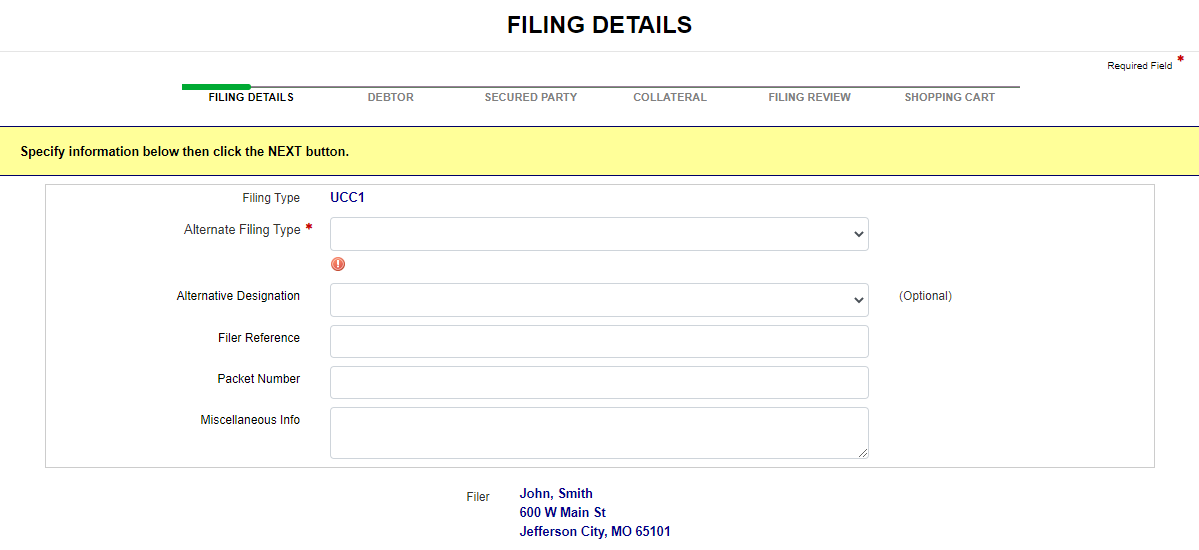
The second step in preparing a lien filing is to complete the Filing Details screen. For amendment
and correction filings the initial file number is required before proceeding.
When filing a continuation filing, the filing will extend the maturity
date (determined by your jurisdiction). Depending upon the amendment type
and amendment action, the next available screen can be Debtor, Secured
Party, or Collateral. Refer to
Notes:
Visible and required fields are configured by your jurisdiction and are based on filing type. The buttons/fields that display may not reflect the images below. For example, Previous and Next buttons may refer to different screens than what are shown.
Continuation filings for alternate filing types may or may not be allowed per your jurisdiction's implementation. For example, transmitting utility liens do not expire; however, your jurisdiction may accept a continuation filing for this alternate filing type. If your jurisdiction does not accept continuation filings for alternate filing types, you will not be allowed to continue.
Initial file numbers cannot be changed once you have navigated to Filing Review. You must delete the current filing and start a new filing.
How to complete filing details:
After selecting the Next button on the New UCC Filing screen, Filing Details displays for the selected filing type. In this example, the filing is a UCC1.
If applicable, select an item from the following drop-down lists:
Alternate Filing Type
Alternative Description
If applicable, enter information in the text fields:
Filer Reference
Packet Number
Select one of the following options:
Previous: New UCC Filing
Discards any entered information and returns to the New UCC Filing screen.
Next: Debtor
Saves entered information and displays the Debtor screen.
How to complete filing details:
After selecting the Next button on the New UCC Filing screen, Filing Details displays for the selected filing type, amendment type, and amendment action (if applicable). The Filing Type, Amendment Type and Amendment Action fields display as read-only. In this example, the amendment type is Amendment (Collateral) and the amendment action is Restate.
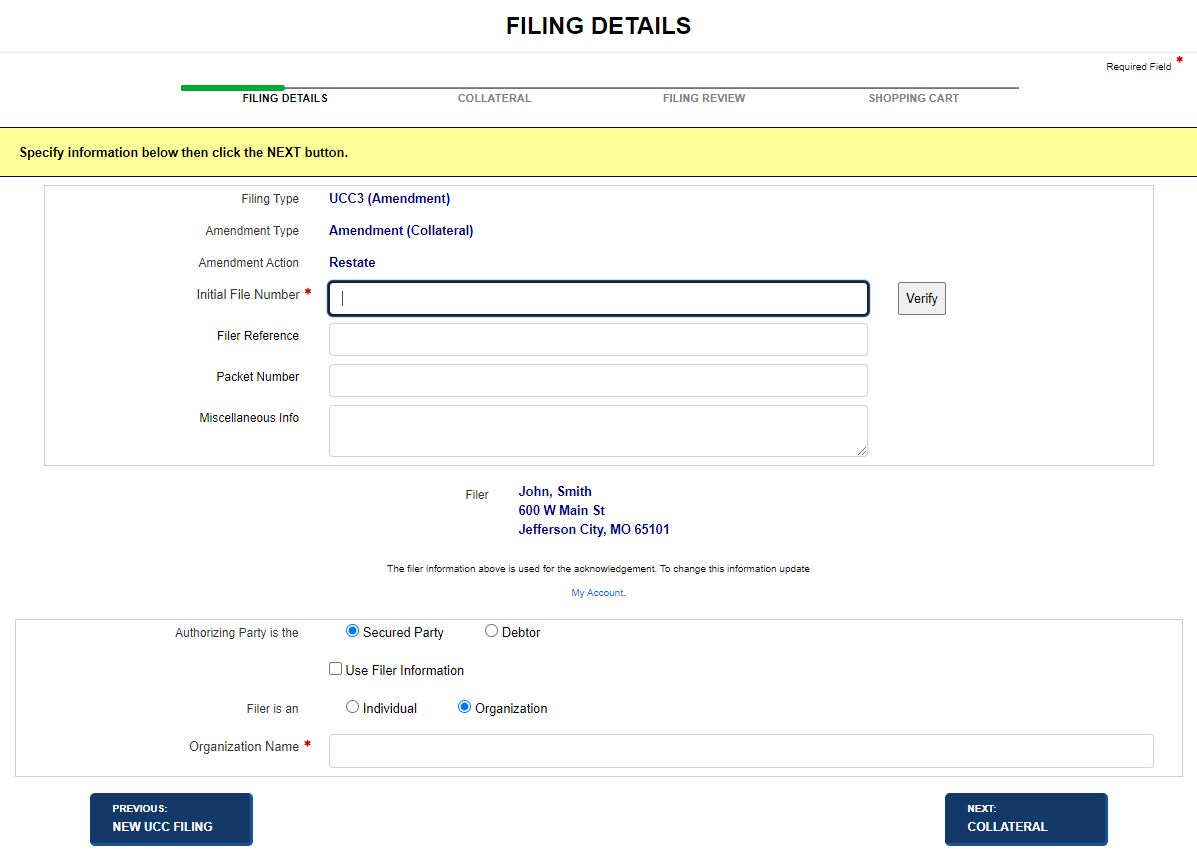
Enter the Initial File Number and then select the Verify button. File number is limited to 30 characters.
If the lien has lapsed, a message informs you of the lapse date and that the filing cannot proceed.
If the lien
has not lapsed, is a continuation filing, and is
If the file number is incorrect, an error message displays. Correct the file number and proceed.
If the file number is correct, Filing Chain Debtors and Filing Chain Secured Parties tables display. Fields are read-only.
Indicate Authorizing Party:
Select Secured Party or Debtor radio button; if filer is authorizing party, select the Use Filer Information check box.
Select Individual or Organization; the name fields refresh to reflect your selection.
Select one of the following options:
Previous: New UCC Filing
Discards any entered information and returns to the New UCC Filing screen.
Next: Collateral
Saves entered information and display the Collateral screen.
How to change the initial file number and remove filing information:
If you have not completed the filing to the point of viewing the Filing Review screen, you can return to Filing Details and enter a different initial file number. Upon selecting the Verify button, the following message displays.
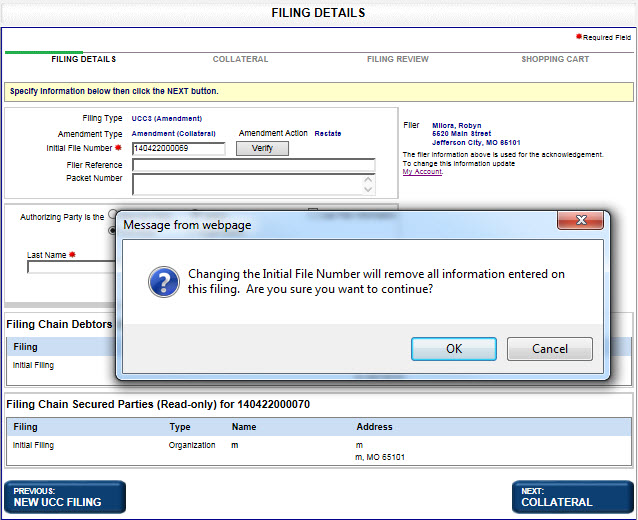
Select OK to close the message. The application alerts you to specify a different file number or reject the filing.
How to complete filing details:
After selecting the Next button on the New UCC Filing screen, Filing Details displays.
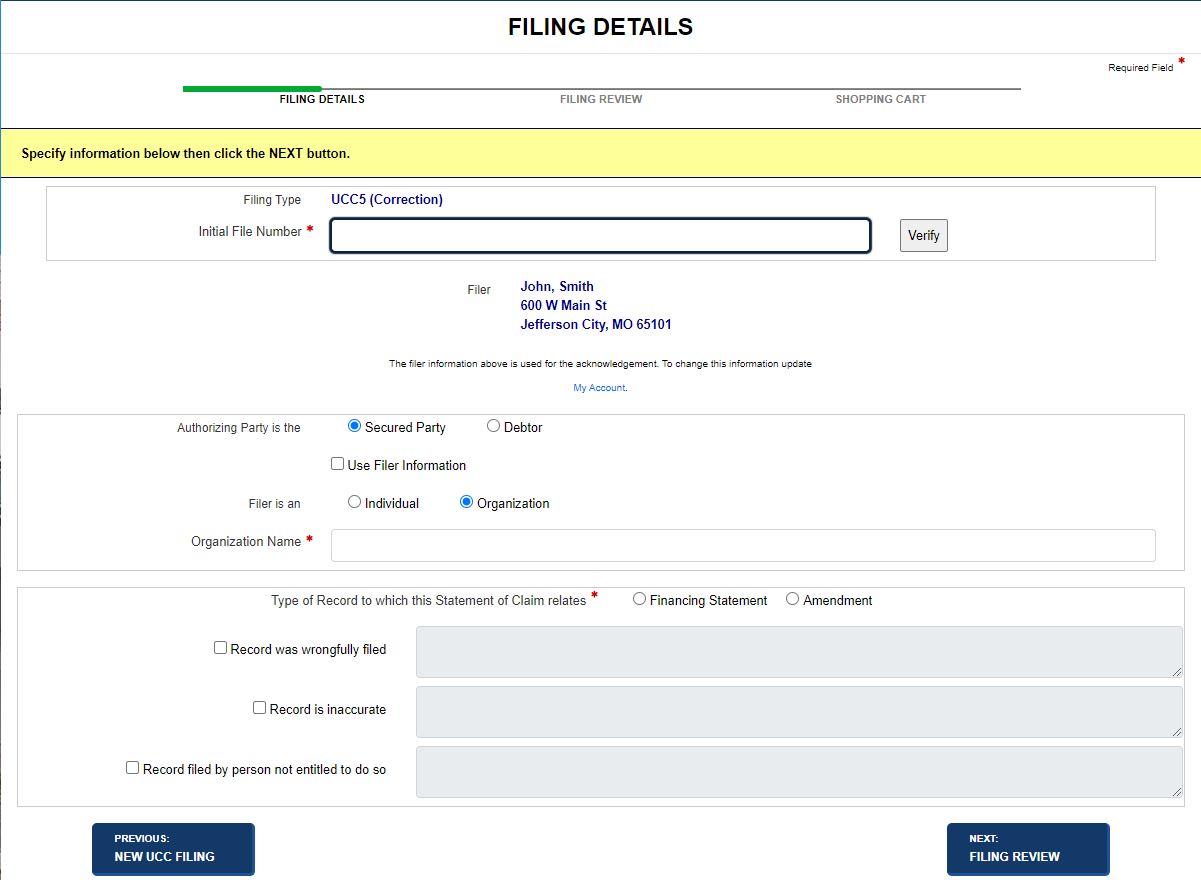
Enter the Initial File Number and then select the Verify button.
If the file number is incorrect, an error message displays.
If the lien has lapsed, you may not be able to process the filing.
If the file number is correct, Filing Chain Debtors and Filing Chain Secured Parties tables display. Fields are read-only.
Indicate Authorizing Party:
Select Secured Party or Debtor radio button; if filer is authorizing party, select the Use Filer Information check box. Filer name displays.
Select Individual or Organization; the name fields refresh to reflect your selection.
Select the Type of Record to which this correction is related, and then select the applicable check box. Enter details about your selection.
Record was wrongfully filed.
Record is inaccurate.
Record filed by person not entitled to do so.
Select one of the following options:
Previous: New UCC Filing
Discards any entered information and return to the New UCC Filing screen.
Next: Filing Review
Saves entered information and displays the Filing Review screen.
Related Information