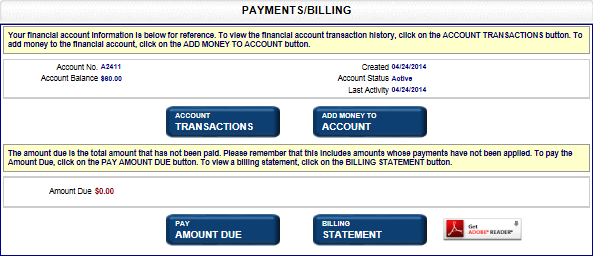
SystemWORKS allows you to manage your auto-payment information via the Manage Payment Methods screen. New payment methods can be added and existing payment methods can be modified and deleted as long as the payment method is not used for any subscriptions. Auto-payment may not be available in your jurisdiction.
How to view payment methods:
Navigate to the Payments and Billing screen.
Select the Manage Payment Methods button to open the associated screen. The Delete button is available as this payment method is not used for subscriptions. If the payment method is used for subscriptions, the Delete button is disabled.
How to add a new payment method:
Select the Add New Payment Method button. A confirmation message displays.
Select OK to close the message and display the Payment Information screen.
Select a Payment Method from the drop-down list. The screen refreshes to display data entry fields for entering payment information.
Enter a name for your saved Payment Method in the text field, and select the Terms and Conditions check box.
Select the Update Auto-Pay Details button. The payment method is updated.
How to modify a payment method:
Select the Modify button in the My Payment Methods table. (See above for navigation.) A confirmation message displays.
The Payment Information screen displays, showing the applicable payment method in the drop-down list. In this example, a credit card has been set up to pay for subscriptions.
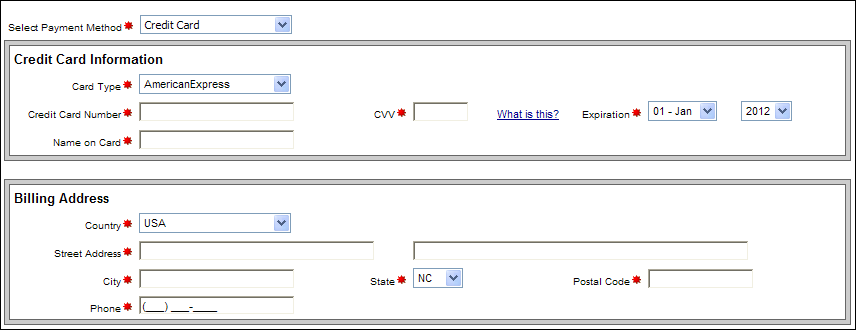
Modify Credit Card information and Billing Address, as applicable.
Select the Terms and Conditions check box.
Select the Update Auto-Pay Details button to save your changes.
How to delete a payment method:
Select the applicable Delete button in the My Payments table (see above for navigation). A confirmation message displays.
Select OK to close the message and delete the applicable payment method.
Related Information