Filing a Service of Process (SOP)
A Service of Process (SOP) filing
allows your Secretary of State office to process and deliver notices,
summons and petitions to defendants involved in legal proceedings that
fall within its jurisdiction. A copy of the notice, summons or petition
is required to accompany the filing. Additional documentation may be uploaded
but is not required. If
corporation is active, proof of prior attempted service upon the registered
agent is required.
Notes:
- If another filing for the same business entity
is in process or is of the same filing type as the current filing,
you will be alerted to try again later. The current filing cannot
be continued but can be restarted when the other filing has been completed
(accepted/rejected).
- Screens, fields and labels that display are based
on your jurisdiction's implementation and may not reflect your filing
type.
- If you need to re-enter information, select the
button labeled Previous to
return to the screen you were on prior to the current screen.
- If your filing requires a two-step review process,
an internal Secretary of State processor must review your filing for
compliance before it can be accepted or rejected. After making payment,
you will be notified via the email address set up during account creation.
To view correspondence for your filing, refer to Order
Summary/Correspondence-BE for information about accessing
your filing records.
- Contact your jurisdiction's office if you have
questions about this or any of the procedures outlined in SystemWORKS
Help.
How to process a SOP:
Navigate to the
Corporation Services section
of your jurisdiction's Web site.
- Select Service
of Process from the QuickLinks
pane or Submit Service of
Process (SOP) from the File
Online pane. The File
Service of Process screen displays:
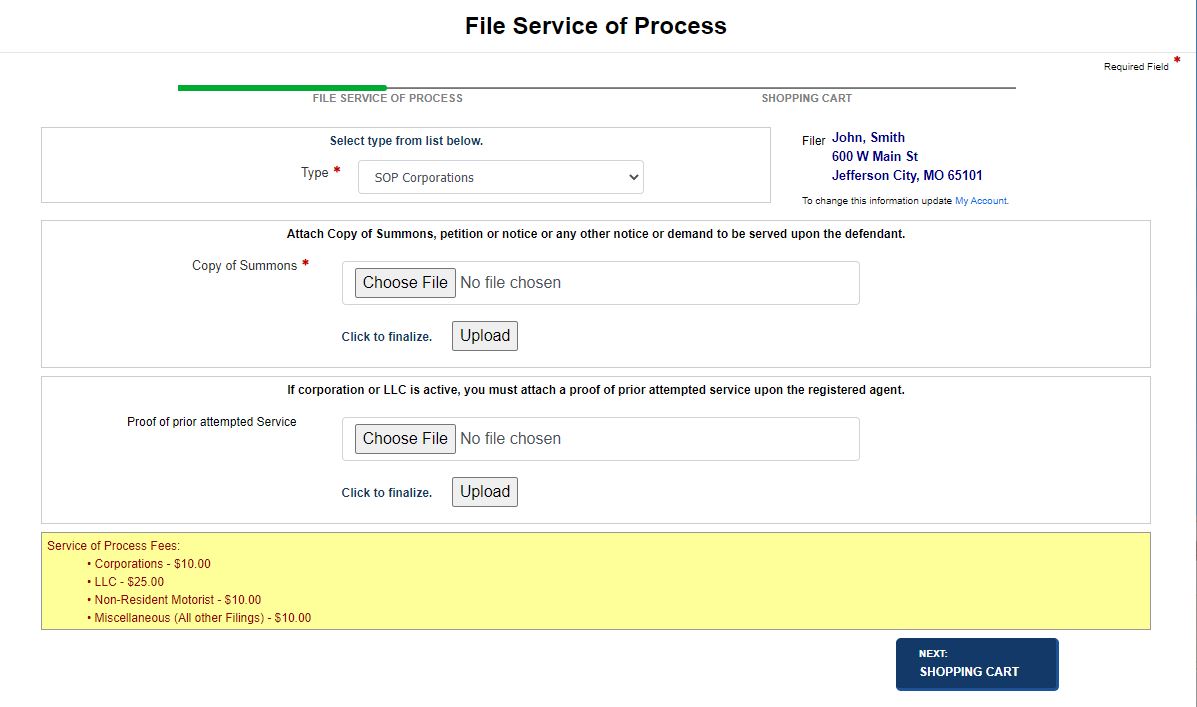
- Select the filing Type
from the drop-down list.
- Attach one or more documents, if needed.
- Select the Browse
button to search for your document.
- Choose the document and then select the
Upload button
to add the document to the filing.
- Refer to Attaching
Documents for additional information on attaching documents.
- If service of process has previously been attempted,
you can upload proof of the attempted service. Refer to Step
4 for instructions.
Select the Next:
Shopping Cart button to display the associated
screen.
- Shopping cart items can be modified and new
items added, if needed.
- Select the Confirmation
check box.
- Refer to Managing
Shopping Cart-BE for instructions.
- Select the Next:
Payment button to display the associated screen.
- Select your payment method and enter
payment information.
- Select the Terms
and Conditions check box.
- Refer to Managing
Payments for complete details.
- Select the Next:
Submit Payment button to display the associated screen.
- Payment confirmation displays information about
your order.
- To view documentation, select the View
Documentation button.
- Refer to Order
Summary/Correspondence-BE for additional information.
Related Information
Managing
Payments
Managing
Shopping Cart-BE
Order
Summary/Correspondence-BE