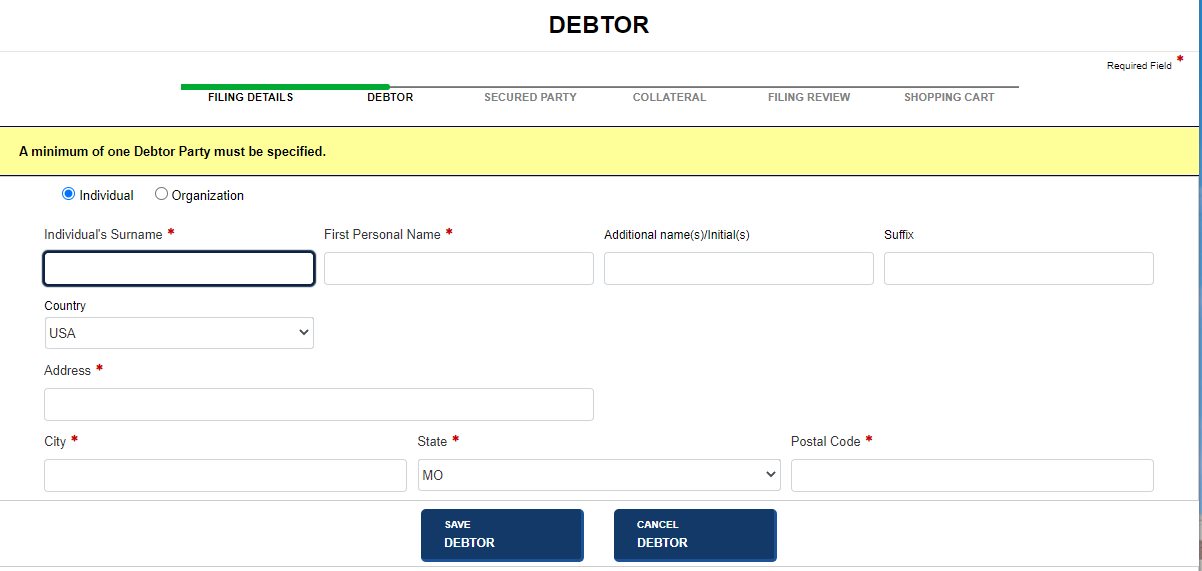
An initial filing records information about one or more debtors. Debtors may be added, updated, deleted or details copied for another debtor.
How to file an initial filing - add a debtor:
Navigate to the Debtor screen after completing filing details (refer to Entering Filing Details for additional information).
Select the Add Debtor button; the screen refreshes to display data entry fields.
Select Individual or Organization to display appropriate text fields.
Enter the debtor's name and address. For non-US addresses, the Postal Code field can accept up to 20 characters.
Select the Save Debtor button to update the debtor details table. You can add another debtor or modify the just entered debtor.
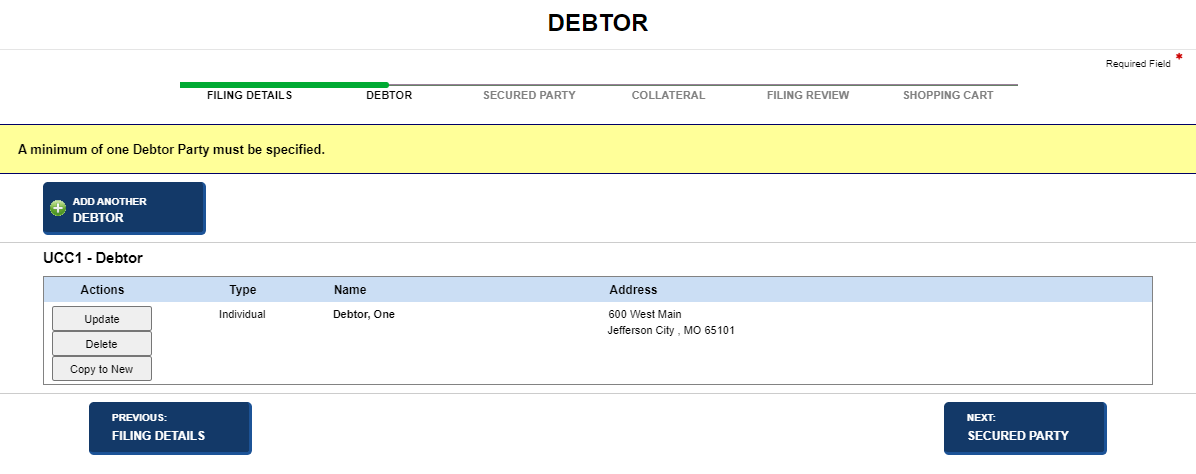
Select one of the following options:
Add Another Debtor
Adds another debtor.
Update, Delete, Copy to New
Modifies current debtor information per instructions found below.
Previous: Filing Details
Discards previously entered information and returns to the Filing Details screen.
Next: Secured Party
Saves entered information and displays the Secured Party screen.
How to add another debtor - same filing:
Select the Add Another Debtor button. Data entry fields display.
Add debtor information as above.
To continue, select options as outlined above.
How to update a debtor - same filing:
Select the Update button adjacent to the desired debtor. Editable information about the debtor displays.
Modify the debtor's details.
Select the Save Updates button.
To continue, select options as outlined above.
How to delete a debtor - same filing:
Select the Delete button adjacent to the desired debtor. A confirmation message displays.
Select OK to close the message and delete the debtor.
The debtor details table is updated.
To continue, select options as outlined above.
How to copy a debtor - same filing:
Select the Copy to New button adjacent to the desired debtor. Information about the selected debtor displays.
Modify the information, as applicable.
Select the Save Debtor button. The debtor details table updates with the new debtor information.
To continue, select options as outlined above.
Related Information