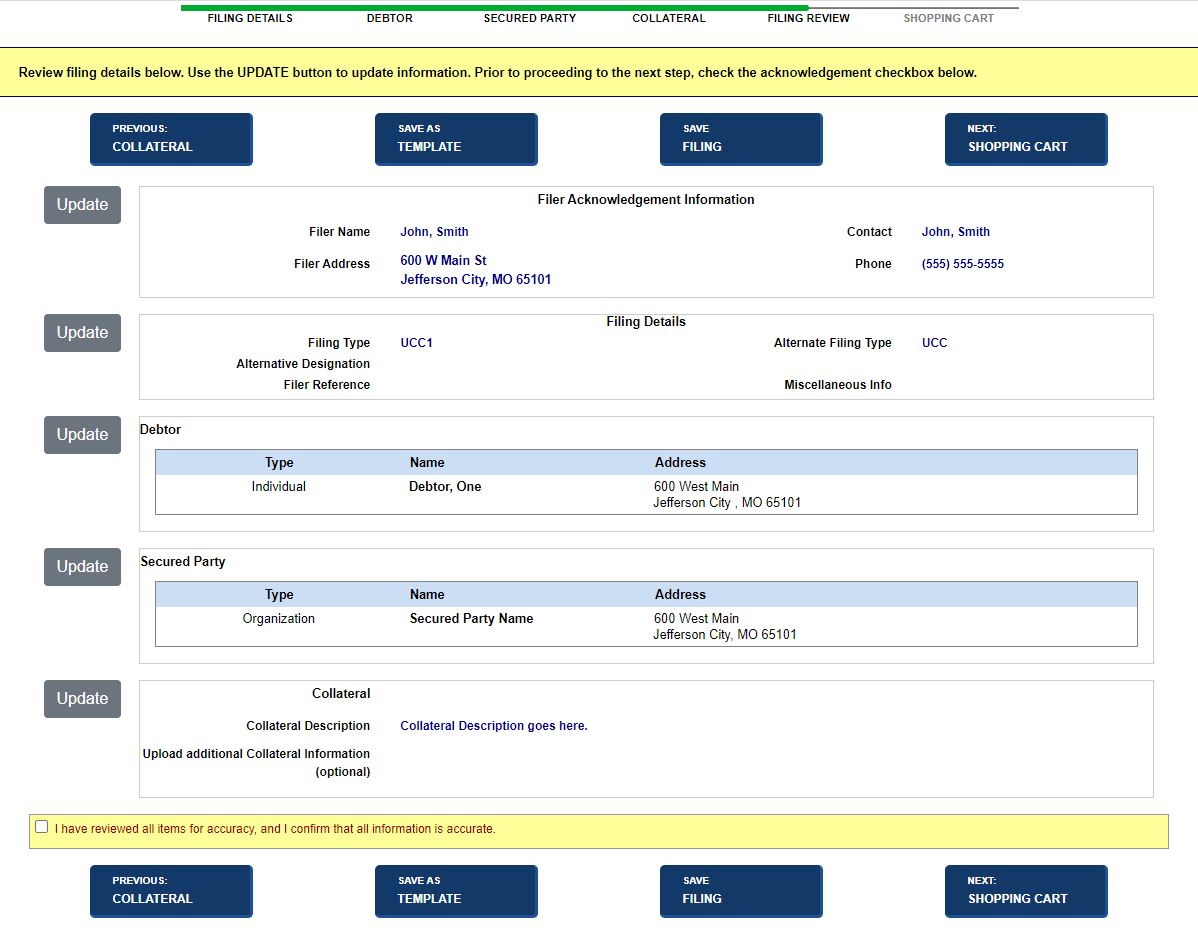
Filings and requests can be reviewed prior to submitting them for payment. The Filing Review screen also enables you to update information, save a filing as a template (or just save it), as well as navigate to other areas of the application. Visible and required fields are configured by your jurisdiction and are based on filing type. The buttons/fields that display may not reflect the images below. For example, Previous and Next buttons may refer to different screens than what are shown.
How to review a filing:
Select the Next: Filing Review button. The Filing Review screen displays.
To modify any of the information, select the Update button to display the associated screen. For example, if you select the Update button adjacent to Filing Details, that screen displays. If you select the Update button adjacent to Debtor, the Debtor screen displays. Update the applicable information and then select Save Updates & Return to Review. Refer to Related Information below for links to relevant topics such as updating your account, debtor and secured party screens, and the filing chain.
Note: If you chose to update filing details for an amendment filing, the Initial File Number displays as read-only on the Filing Details screen.
If configured, select the Confirmation check box.
Select one of the following options:
Previous: Collateral
Returns to the Collateral screen.
Save as Template
Filing is saved as a template to be used again for filing purposes. Refer to Creating a New Template.
Save Filing
The Save Filing modal opens; enter a unique filing name and then select the Save & Continue Filing button. Duplicate names produce an error message.
Next: Shopping Cart (You must select the Confirmation check box before selecting Next: Shopping Cart button or an error displays.)
If all required information has been entered
and is valid, you will be directed to the Shopping
Cart screen. Refer to
Related Information